Dress Dance#
HiPhyEngine Version
This tutorial requires HiPhyEngine v1.2.0 and above
In this example, you will learn how to HiPhyEngine to simulate and render a cloth with a retargeted motion captured animation that contains self-intersection.
The key focus of the tutorial is the using the soft collider, to automatically clean up the self-intersection in the animation to get a clean simulation result.
We will start with the Blender file here. The dress is taken from the previous dress tailoring tutorial
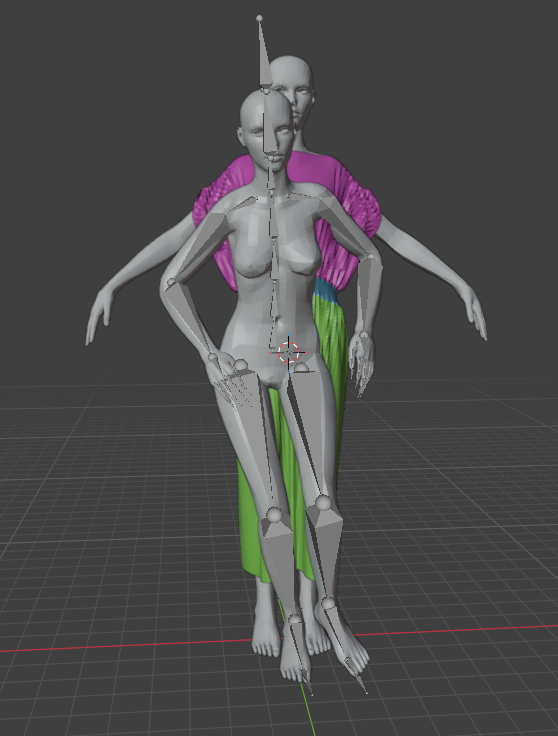
The animation is taken from Mixamo and auto-rig and retargeted to the female_base mesh.
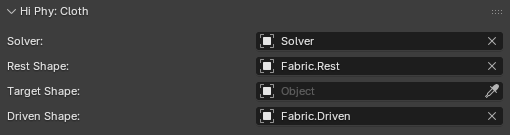
We have setup a simple sim-rest-driven rig. That used the original pattern as the rest shape, and a driven shape with subdivision surface and solidify modifiers for rendering.
Problems to Solve#
There are a few issues right now to start running the simulation with the animation.
-
The initial pose for the animation does not match the A pose the dress is tailored in.
-
The animated mesh contains self intersection.
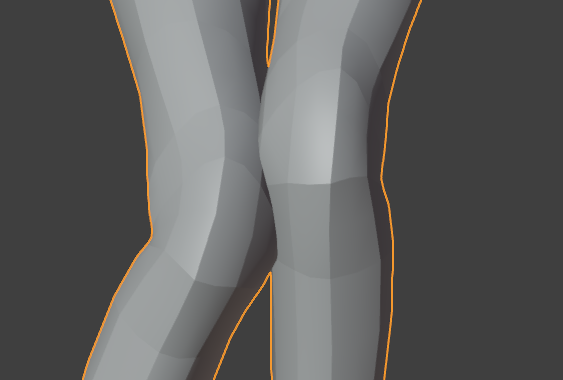
- Mixamo triangulated the mesh. The animation mesh is triangulated, and won't work well with the Subdivision Surface modifier.
We will solve them one by one
Step 1: Preroll#
We will create a preroll animation to interpolate from the A pose to the start of the animation.
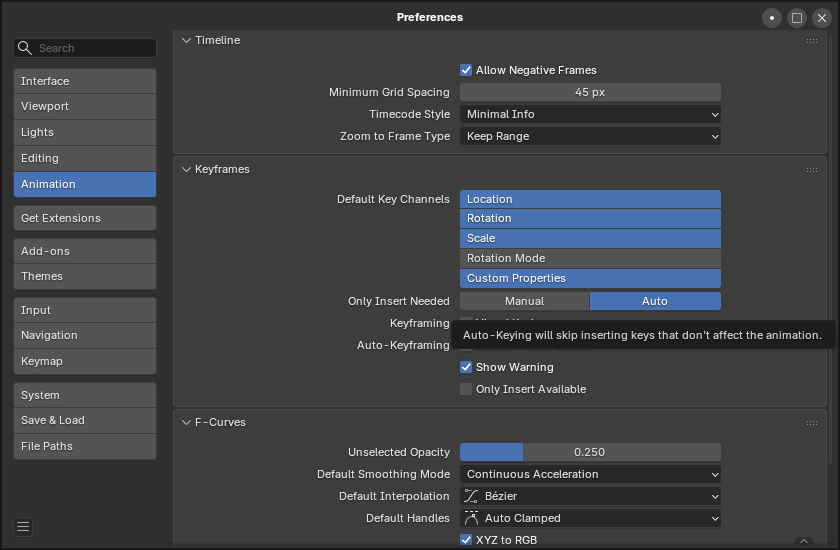
- Goto preference->animation, check Allow Negative Frames
-
Goto frame -30, goto pose mode, press A to select all joints, press alt+R to reset all joint rotations. Reset the transform of the Hips bone. Key all the joints.
-
Goto the solver node, set the starting frame of the simulation to -30.
Now the preroll animation is setup.
Step 2: Set Up Soft Collider#
Soft collider is a special material that is designed to automatically resolve self intersection of the collision objects.
To setup the soft collider:
-
Select female.base
-
Add a Triangulate modifier and check the Keep Normals.
-
Goto the physics panel, turn on HiPhy, select Soft Collider
-
Choose the solver object for the Solver parameter.
-
Choose the female.base (the animated mesh) for the Target Shape parameter.
-
Set inner thickness to 0.01 (0.1mm).
-
Set outer thickness to 0.5 (5mm).
Target Shape
The reason we can use the animated mesh here for the target shape, is that even though it has a different topology, the vertex count and vertex ID still matches exactly to the original mesh.
If you run the simulation now, the first frame will take a very long time, and you will notice some problem.
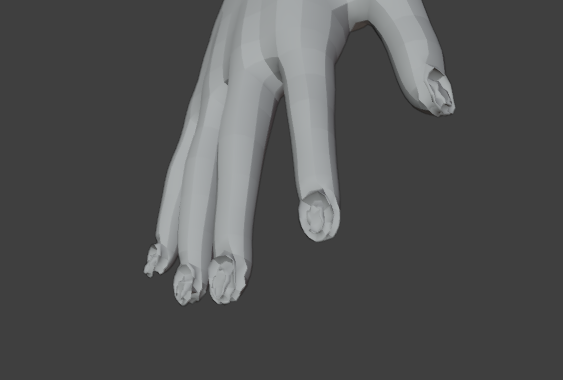
The finger nails and other part of the body is colliding with itself and been pushed apart. That's what is making the simulation slow.
There are a few ways to resolve this.
-
We can making a map for the collision radius, to that most of the extremities of the body will have a very small collision thickness, so they will still participate with the collision if needed.
-
We can making a map for the collision activation, so that most of the extremities of the body will not participating with the collision at all.
-
We can make a proxy collision mesh, with simplified geometry.
Option 3. Is most reliable, however, user will need some way to transfer the motion from the proxy collision mesh to the render mesh. As the soft collider will displace the collision mesh to resolve self intersection.
In this case, the head, hands, and toes are not interacting with cloth in the animation, so we will go with option 2 and turn off the collision for those parts.
Step 3: Masking Collision#
-
Select female.base
-
Goto edit mode, and select the hands, head, and toe. Assign them to a vertex group named NoCollision
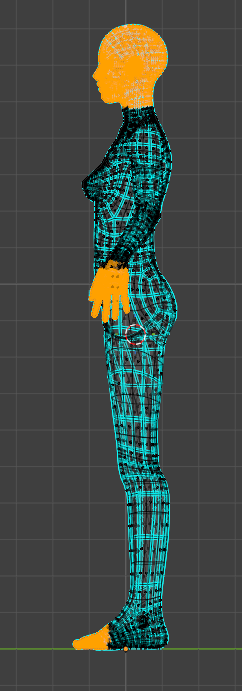
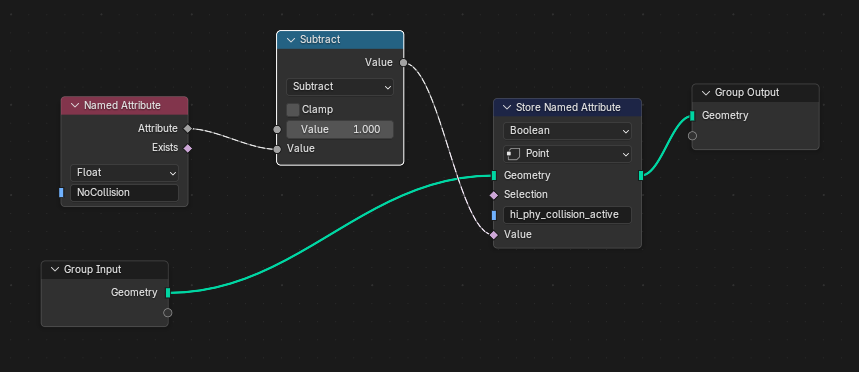
- Add the following geometry node. (The geometry nodes just flips the vertex group, so vertices with active collision will have a value of 1 and the selected vertex with value 0).
- Goto the Hi Phy panel and check the box to the right and use hi_phy_collision_active for Can Collide With Other Simulation Object.

Soft colliders are simulation objects
For the simulation purposes, Soft Colliders considered as simulation objects in collision, because they are simulated.
If you run the simulation now, it will be a lot faster now.
Step 4: Simulation Failure#
Goto frame 135, you will see that the original animation, has the legs intersected.
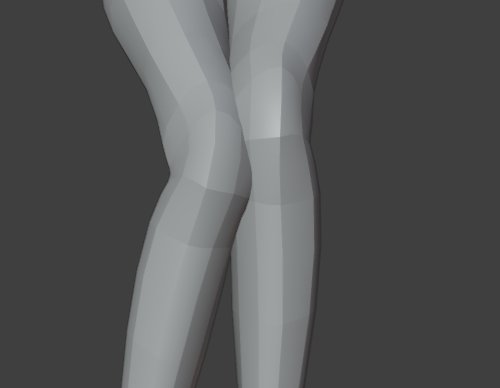
The soft collider automatically cleaned up the collision.
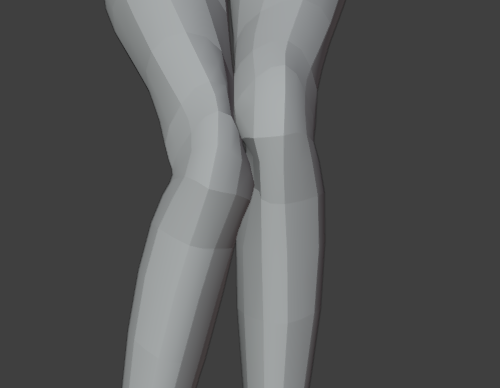
It allowed the fabric to have the space for a clean collision.
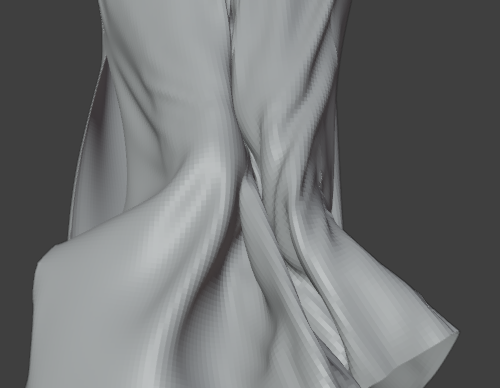
However, the simulation will still fail at frame 181 or frame 220.
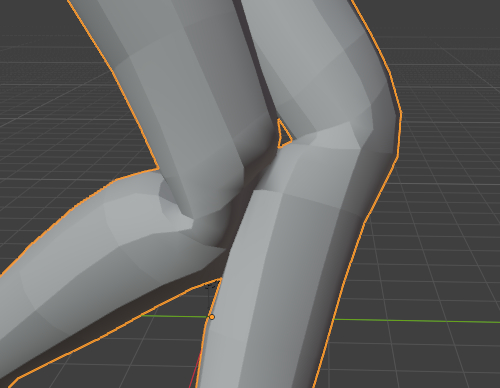
Soft collider can solve self intersection, however, due to the continuous time collision requirement, it can not solve colliders goes pass each other. Therefore, some clean up will still be needed. However, it is easy to fix.
- Rotate the back leg slightly using the rig around those frames, so it clears the way, during the animation.
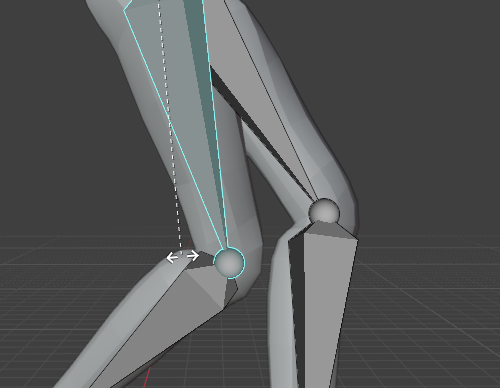
- Resume the simulation before the modified animation (for the retail version).
That's it! Once the simulation finishes, you will get a clean and intersection free simulation result!
We will find the final Blender file here.