Force Field and Expression in Blender#
HiPhyEngine supports force fields and expressions to enable user to procedually create maps and external forces. The expression language used is SeExpr2. Expression language provide an simple way for artists to programmably create a per-point value attributes for simulation.
Force Field#
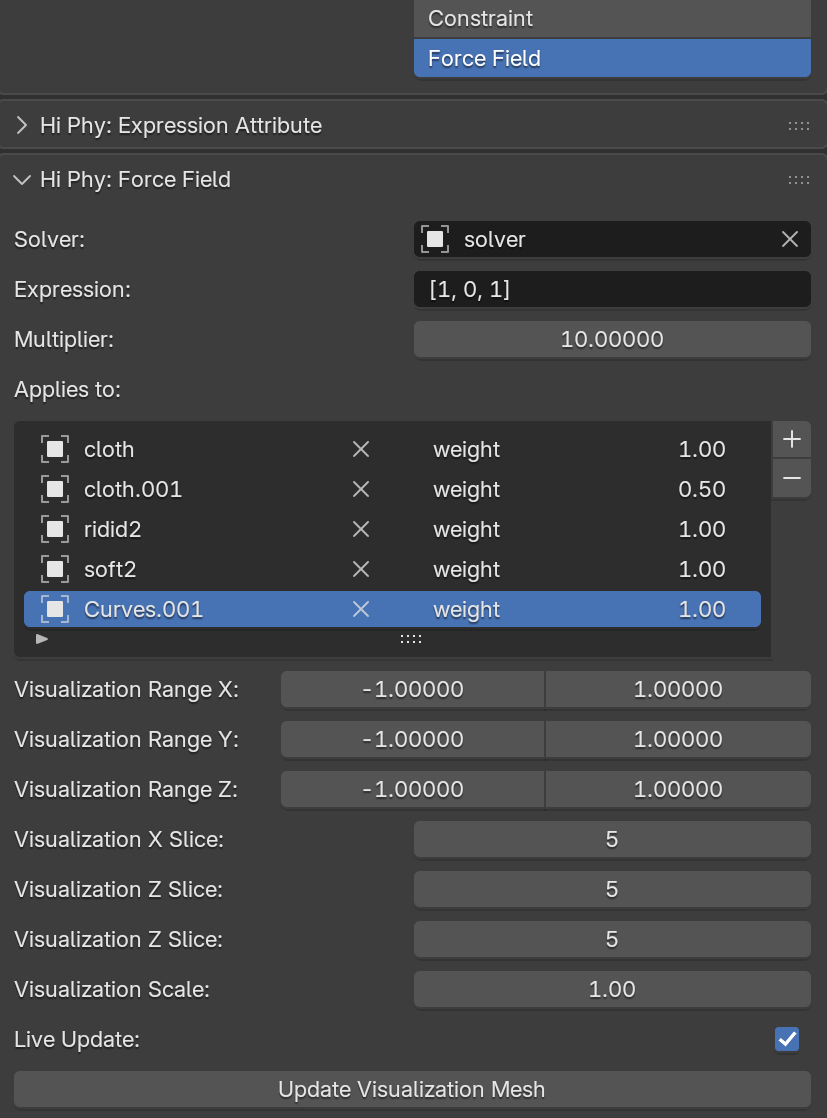
For visualization purposes, force field objects must be a mesh objects. In the examples, we used a plane as the force field object. Enable Hi Phy in the Physics panel and select Force Field, it will make the object a force field object for HiPhyEngine.
Simulation Parameters#
The solver parameter is the solver object associated with the force field.
The expression parameter is the SeExpr expression for the force field. Force field expression currently supports $P (vertex position), and $time (time) variables. The expression must be of the type Vector3.
$P space
The $P is the vertex position in the force field. It is intended so that user can use the transform of the force field object to move and rotate the generated force field without change the expression itself.
The multiplier parameter applies a single scalar factor to scale up the force field expression. It is for a fast way to scale up the force value uniformly without adjusting the expression.
$time
$time is the time inside the simulator, respecting the solver's frame rate and time scale parameter. It is intended so that when force field is evaluated during simulation, the $time will match the visualization.
The unit of the force field
Dispite of the name, the unit for force field is \(10\mu N/cm^2\) (presure) for mesh objects (affine body, cloth, and deformable body), \(10\mu N/cm\) for curve objects (elastic rod). It is so that the force field's influence is resolution independent.
The applies to parameter is a list of all objects that the force field influences. For each object, user can apply a different weight. Please make sure the simulation object is in the same solver as the force field. Force field has infinite ranges, the visualization range does not represent the range of the force field.
Visualization Parameters#
To visualize the force field, user can use the visualization parameters, set a range and number of slice. Click Update Visualization Mesh to update the force field mesh. When Live Update is checked, the visualization mesh will also automatically update with the change of frame.

An example for using the forcefield can be find here.
Force Field Shadowing#
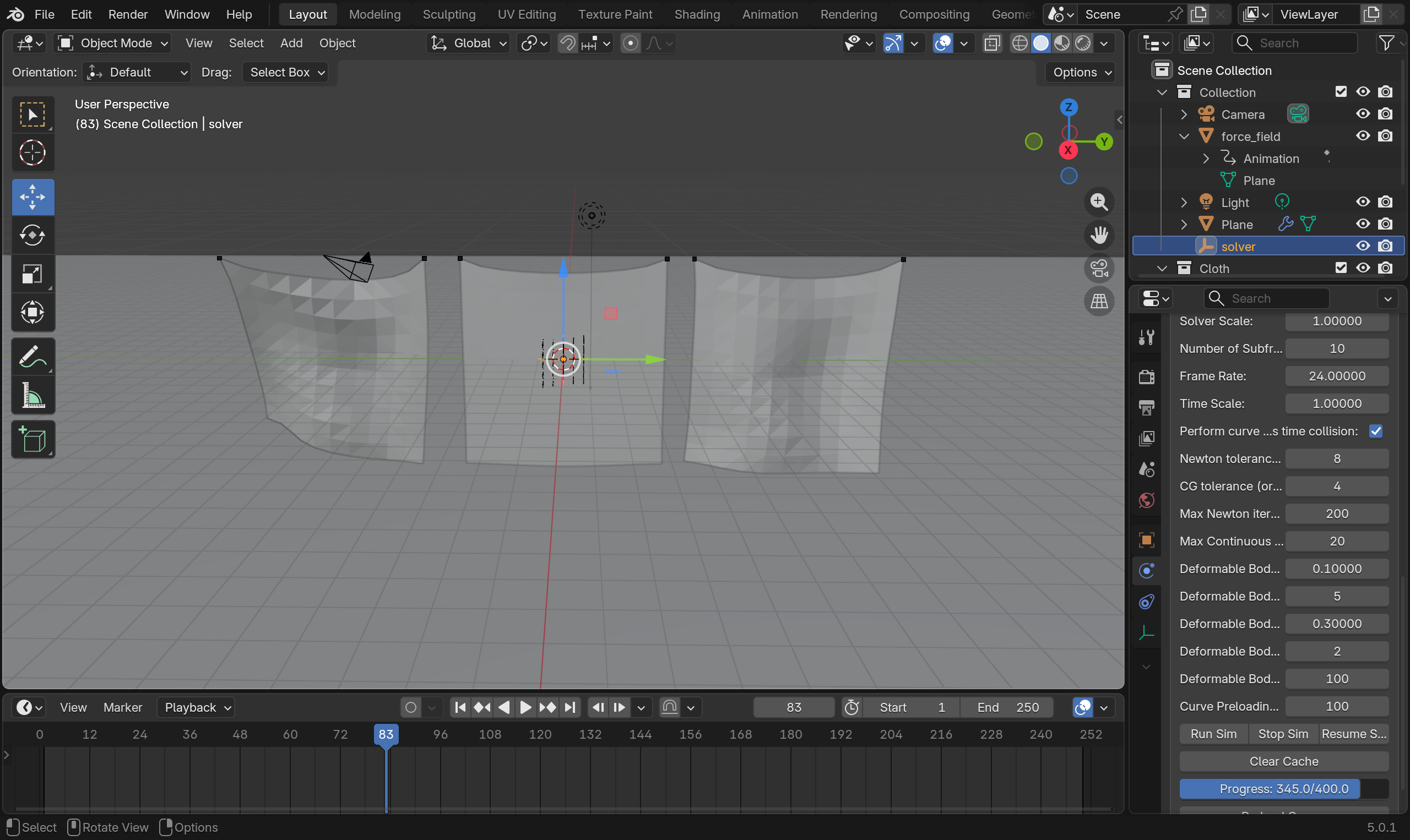
In real world, external forces such as wind will be blocked if there is an another object in front. This effect is emulated using the shadowing effect. It can be imagining that each object will cast a shadow that blocks the external force to reach the simulation object. The shadowing effect is calculated by casting a ray from the point at which the external force is applied. The ray is back traced until it hits a simulation object or collision object. The distance of the ray is controlled by Shadow Distance Simulation Object and Shadow Distance Collision Object correspondingly. If the ray is a hit, Shadow Effect Simulation Object and Shadow Effect Collision Object will be used to reduce the force field. 1 means the whole force will be blocked, 0 means the no force will be blocked. If there are both collision object and simulation object are within the respected Shadow Distance, the closest object's type to the ray original point will be used to compute the Shadow Effect value.
All shadowing effect parameters are mappable and animatable. Shadow Distance and Shadow Effect is computed based on the value for the point at which the force is applied, not the point at which the shadow ray is hit.
Soft Collider
Soft collider is considered as simulation object for shadowing, not collision object.
You can find the an example file for force field shadowing here. Use can see how the cloth behind been affected by the force field when coming in/out of the shadows of the front object.

Per Force Field Control, and Shadow Casting Control
We current do not provide a way to control shadowing per force field, or control if an object cast shadow or not. The combination of different force fields and simulation objects can get out of control very quickly. We are open to suggestions for good ways to provide those controls to the user.
Expression Attributes#
HiPhyEngine supports using per point attribute for the mappable properties. User can use tools in Blender, such as geometry nodes to create and animate the attributes. HiPhyEngine also provide a tool for user to create point attributes using SeExpr2 expressions.
To create expression attribute, enable Hi Phy in the Physics panel. Creating expression attribute does not require the object to be a HiPhy simulation object.

User can create any number of expression attributes, by adding them to the list. HiPhyEngine will automatically parse the expression and create the attribute with the proper type. The expression attribute currently supports $P, $t, $u, $v and $time variables.
$P is evaluated as the position attribute.
$t is evaluated as the hi_phy_parameterization attribute.
$u is evaluated as the hi_phy_u attribute.
$v is evaluated as the hi_phy_v attribute.
$time is the current scene time.
In addition to the parameters above, we provides three float and three vector attributes as arbitrary inputs. The three float attributes are $v1, $v2, and $v3. They are evaluated as hi_phy_v1, hi_phy_v2, and hi_phy_v3. The three vector attributes are $vv1, $vv2, and $vv3. They are evaluated as hi_phy_vv1, hi_phy_vv2, and hi_phy_vv3.
All the attributes must be per-vertex (point domain).
$u and $v
$u is evaluated as the hi_phy_u attribute, $v is evaluated as the hi_phy_v attribute. Not the hi_phy_cloth_uv attribute. This is intented to decouple the cloth material parameterization from the expression parameter, to give user more control over the expressions.
$time
Different from the force field, expression attribute are not associated with a solver, and is evaluated in Blender (instead of inside the simulator like the force fields). So the $time here is the scene time, not the simulator time.
User can use the Evaluate Expression Attribute button to manually evaluate the expression at the current time and set to the corresponding Blender attribute. Or with the Live Update option checked, the attributes will be automatically updated with frame change.

To use the expression attribute for simulation, it follows the same process as other mappable properties. Check the box next to the simulation property in question, then type in the attribute name will be used for that property.
An example for expression attribute can be found here